


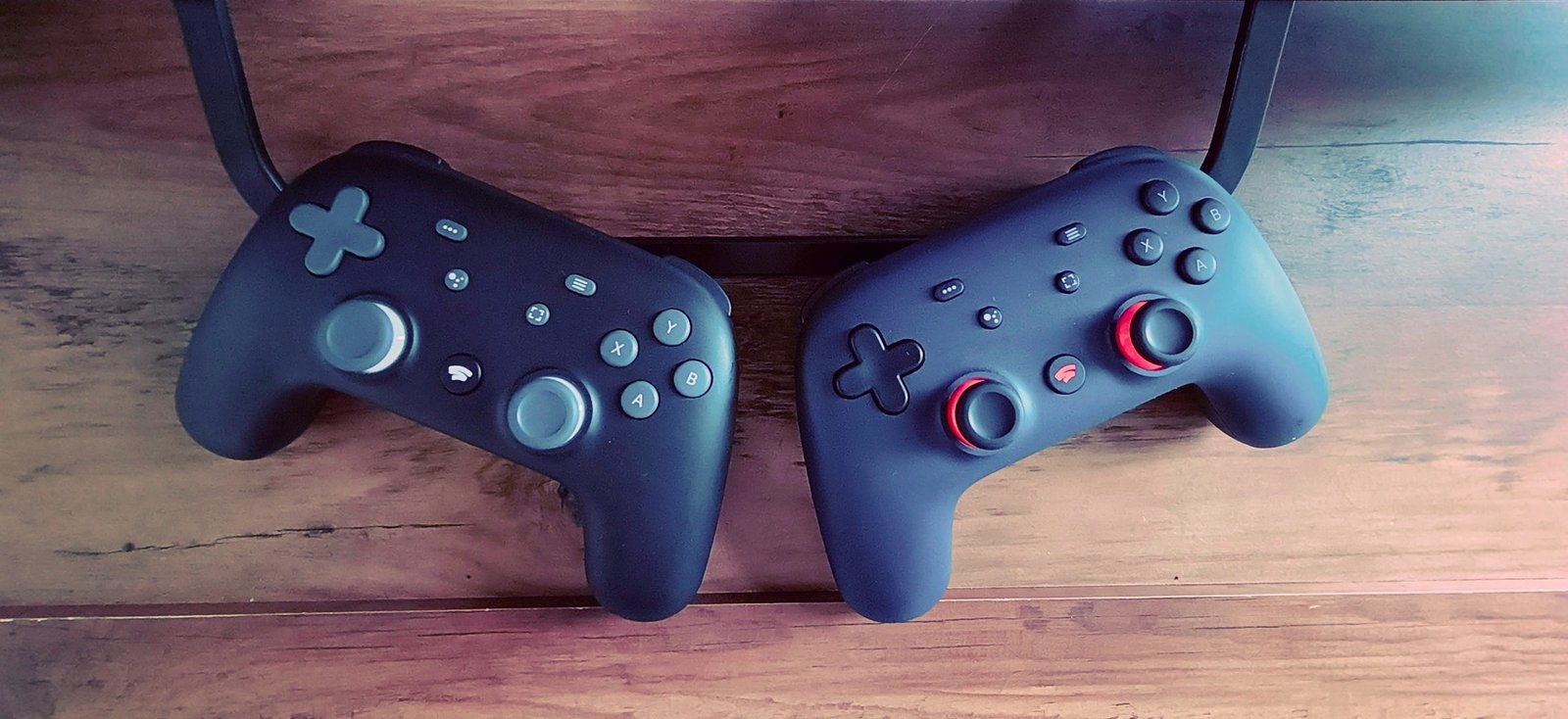
When Google officially pulled the plug on Stadia in January 2023, the cloud gaming dream was over (and speaking as an early adopter… DAMN). But for many players, the real concern wasn’t the service — it was the chunky, surprisingly excellent Stadia controller sitting on the shelf.
Thankfully, Google threw controller owners a bone before shutting the doors: a firmware update that turns the Stadia pad into a standard Bluetooth controller. Do it, and you’ve got yourself a perfectly usable gamepad for PC and (with some caveats) consoles.
Ignore it, and after 31 December 2025, you may be stuck with a very stylish paperweight.
Here’s how to keep your Stadia controller alive — and where it works best once converted.
What changed after Stadia shut down?
Originally, the Stadia controller didn’t behave like a normal Bluetooth pad. Instead of pairing directly with your device, it connected over Wi-Fi straight to Google’s servers — great for cloud gaming, not so great for long-term reuse.

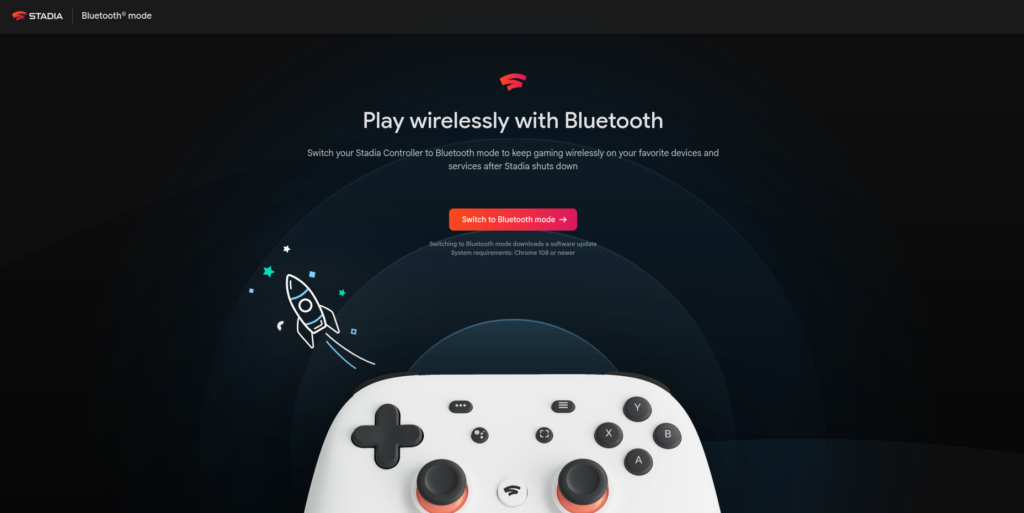
Once Stadia shut down, Google released an official tool that permanently switches the controller into Bluetooth mode. This removes Wi-Fi functionality forever, but allows the controller to work wirelessly with PCs, phones, and some consoles — or wired via USB-C if Bluetooth isn’t playing nicely.
This conversion is optional, but time-limited.
Important: There’s a deadline
Google has confirmed the Bluetooth conversion tool will stop working on 31 December 2025. After that date:
- You won’t be able to enable Bluetooth if you haven’t already
- Wireless use may be impossible
- Wired USB use may still work, but isn’t guaranteed long-term
If you own a Stadia controller and think you might want to use it in future, do the conversion now.
How to update the Stadia controller firmware (add Bluetooth Mode)
What you’ll need
- A Google Stadia controller
- A PC or Mac
- Google Chrome or Microsoft Edge (Chromium-based)
- A USB-C data cable
- At least 30% battery charge
Step-by-step
- Fully charge your Stadia controller (or at least get it past 30%).
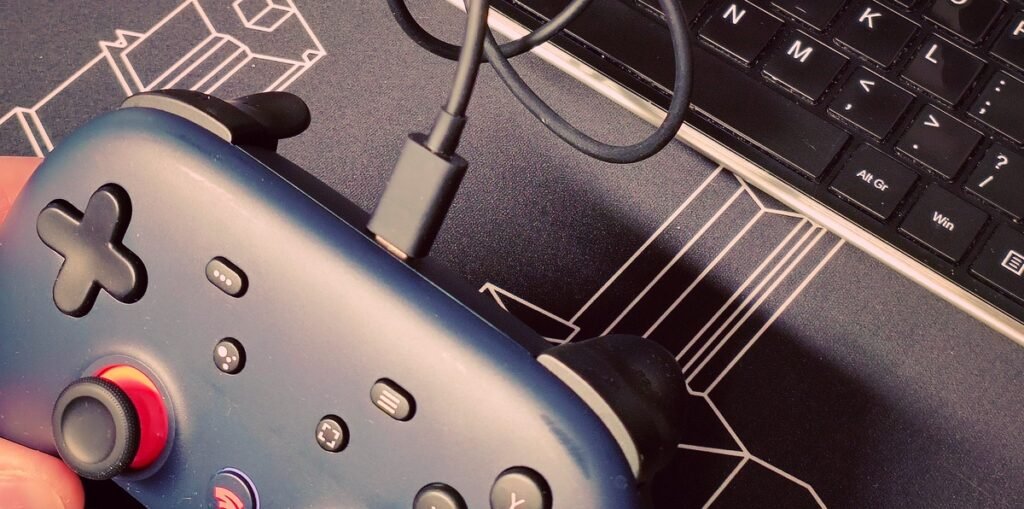
- Connect the controller to your computer using a USB-C cable.
- Open Chrome or Edge and visit:
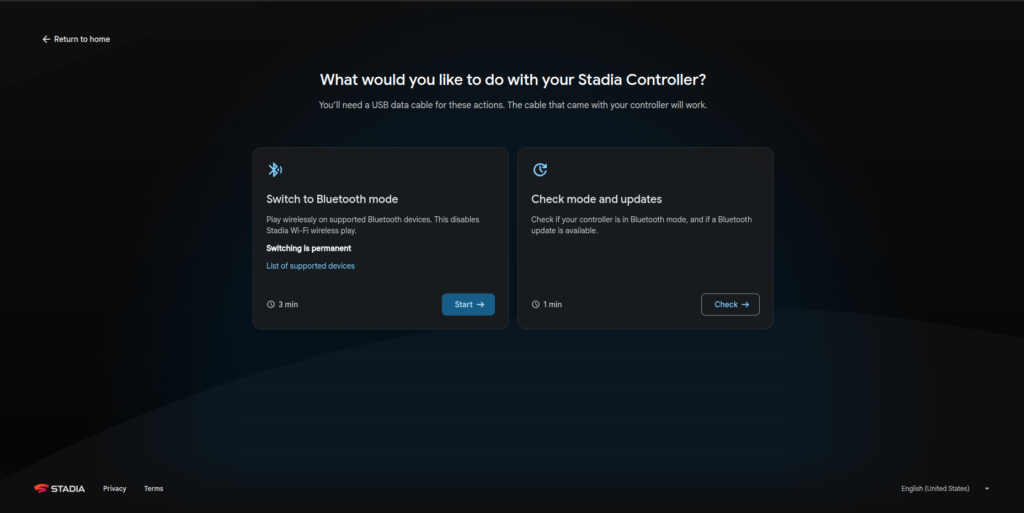
stadia.google.com/controller - Follow the on-screen instructions and choose Switch to Bluetooth mode.
- Let the firmware install — don’t unplug the controller during the process.
- Once finished, the controller is now permanently in Bluetooth mode.
That’s it. No accounts, no Stadia login, no fuss.
How to pair the Stadia controller via Bluetooth
Once converted, pairing works like any modern gamepad:
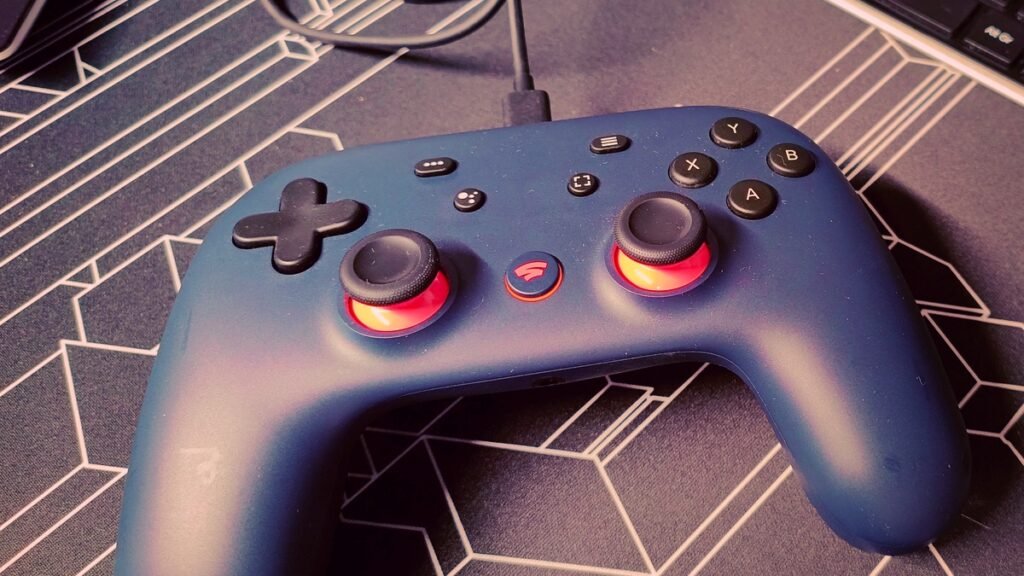
- Hold Stadia + Y for a few seconds.
- The status light will flash orange (pairing mode, as above).
- Open Bluetooth settings on your PC, console, or phone.
- Select Stadia Controller from the device list.
- When connected, the light turns solid white.
You’re ready to play.
Where the Stadia controller works best
✅ PC (Windows, macOS, Linux, Steam Deck)
This is the controller’s natural new home.
- Works well with Steam, including Big Picture Mode
- Can be remapped easily
- Recognised as a generic gamepad by most modern games
If something doesn’t map correctly, Steam’s controller settings usually fix it in seconds.
⚠️ Consoles (a bit risky)
Fancy connecting a Stadia controller to your controller? Beware, results can be mixed.
- PlayStation 4 / PS5
Bluetooth pairing may appear, but support is inconsistent. Wired USB works more reliably. - Xbox One / Series X|S
Bluetooth wireless isn’t supported due to Microsoft’s proprietary system.
Wired USB works fine. - Nintendo Switch
Results vary. Some users report success with Bluetooth, others need a third-party adapter (such as 8BitDo) for reliable play.
Useful tips and quirks
Once your Stadia controller is Bluetooth-enabled, note that:
- USB still works even after switching to Bluetooth mode
- The Assistant and Capture buttons no longer function as originally intended
- Older Bluetooth adapters may struggle — Bluetooth 5.0+ works best
- Button mapping tools (Steam, reWASD, etc.) are your friends
A decent controller that is worth keeping hold of
The Stadia controller deserved better than the platform it launched with — and thankfully, Google gave it a second life before walking away. This is better than sending it to landfill, and I can speak from experience — the Stadia controller is not bad at all. I’ve used it extensively as a second controller on Steam Deck since Stadia closed, and it fills in fine, particularly as an alternative to the shortage of current-gen Xbox controllers in our house (all “lost” in my son’s room, apparently). Whether you’re playing an old school title like Zool or Half-Life 2 or something more modern, the Stadia controller is ideal.
So, if you’ve got one lying around, converting it to Bluetooth takes just a few minutes and could save you from buying another controller down the line. Just don’t leave it too late — once the conversion tool disappears at the end of 2025, that door closes for good.
Still rocking your Stadia pad in 2025? Let me know what you’re using it with.
Affiliate Disclosure: Some of the links in this post may be affiliate links, which means I may earn a small commission if you make a purchase through those links. This comes at no extra cost to you. Thank you for your support!

Christian Cawley is the founder and editor of GamingRetro.co.uk, a website dedicated to classic and retro gaming. With over 20 years of experience writing for technology and gaming publications, he brings considerable expertise and a lifelong passion for interactive entertainment, particularly games from the 8-bit and 16-bit eras.
Christian has written for leading outlets including TechRadar, Computer Weekly, Linux Format, and MakeUseOf, where he also served as Deputy Editor.
When he’s not exploring vintage consoles or retro PCs, Christian enjoys building with LEGO, playing cigar box guitar, and experimenting in the kitchen.